How the JSON tool works
JSON is great for computers but hard for people to read. This tool color-codes it, checks it for mistakes, and lets you explore and edit it as a tree, in four steps.
Open the JSON toolYour JSON stays in your browser. It's never uploaded.
Step 1
Paste your JSON
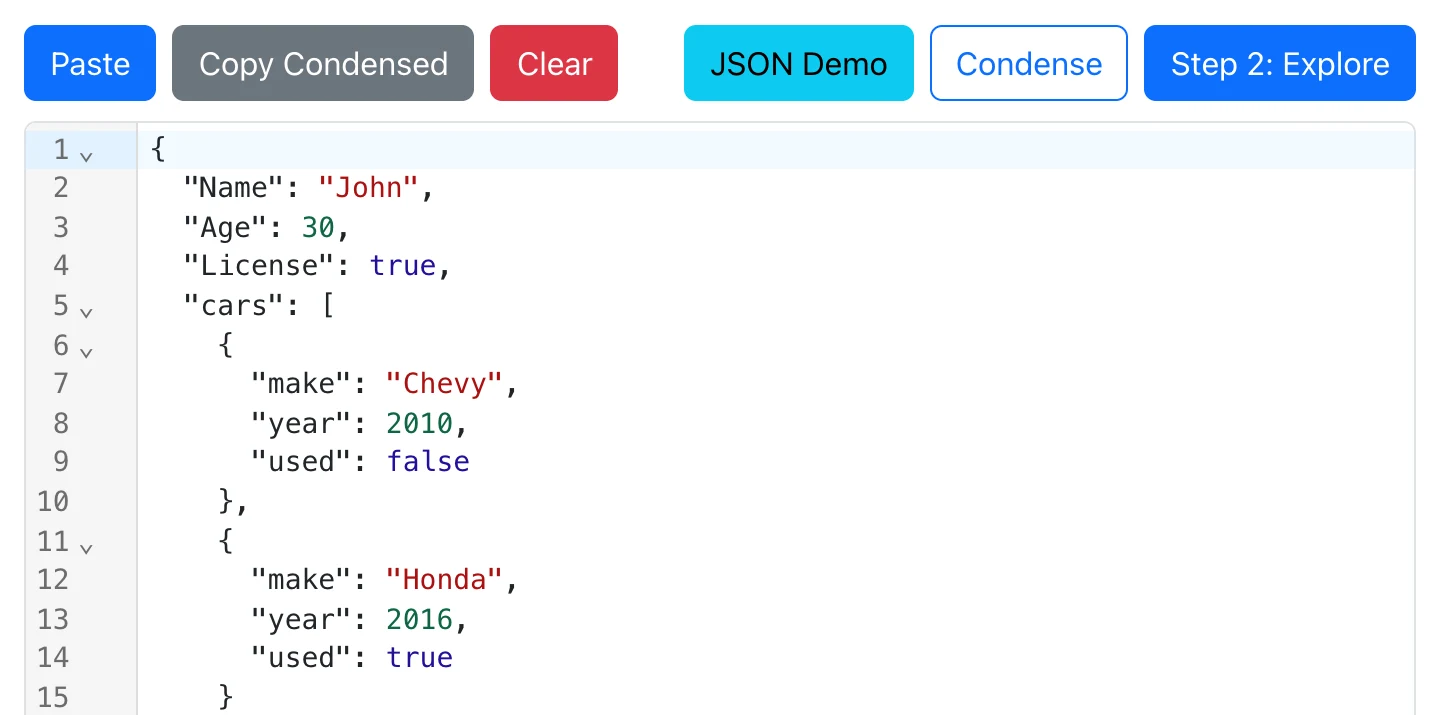
Open the tool and paste your JSON into the editor, or press JSON Demo to try it with a sample.
- Paste pulls in whatever is on your clipboard.
- Prettify spreads JSON over several lines so it's easy to read. Condense squeezes it back onto one line.
- Copy Condensed copies a one-line version, handy for config files and API calls.
- Line numbers and the small arrows beside them let you fold away sections you don't need.
Step 2
Spot mistakes as you type
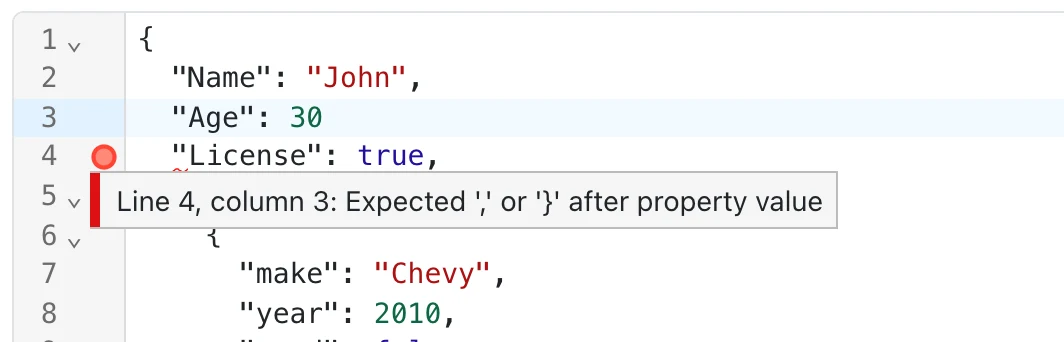
If something's wrong, a red dot appears beside the line and the exact spot is underlined.
- Hover over the red dot to see what's wrong and the line and column where it happened.
- The most common causes are a missing comma, a trailing comma before
}or], and single quotes instead of double quotes. - The marker disappears as soon as the JSON is valid again.
Step 3
Explore it as a tree
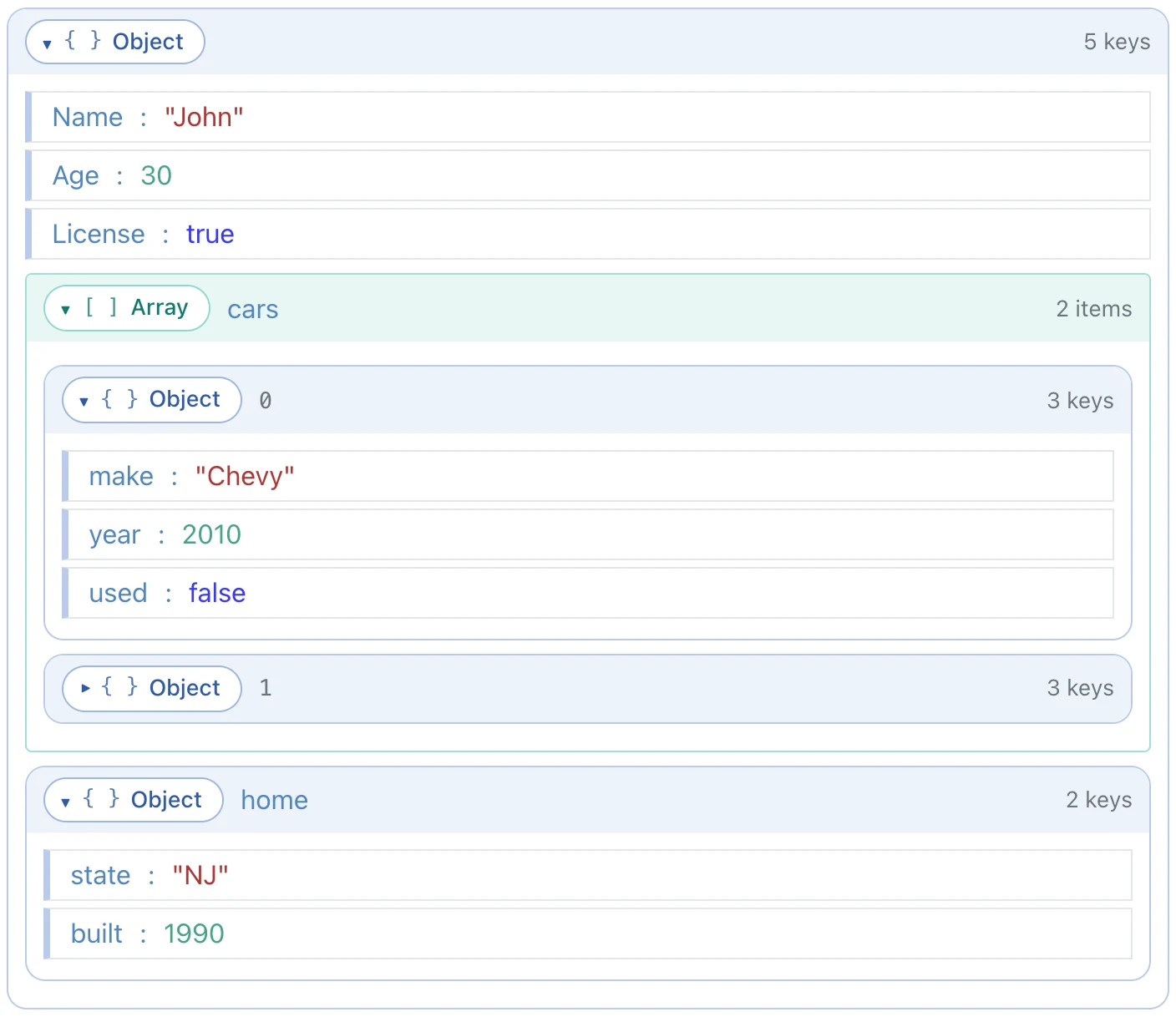
Press Step 2: Explore to see your JSON as nested boxes you can open and close.
- Click a box's Object or Array button to collapse or expand it. The arrow points down when it's open and right when it's closed.
- Each box shows its key (or position in a list) and how many items are inside.
- See Reading the colors below for what each color means.
Step 4
Edit values
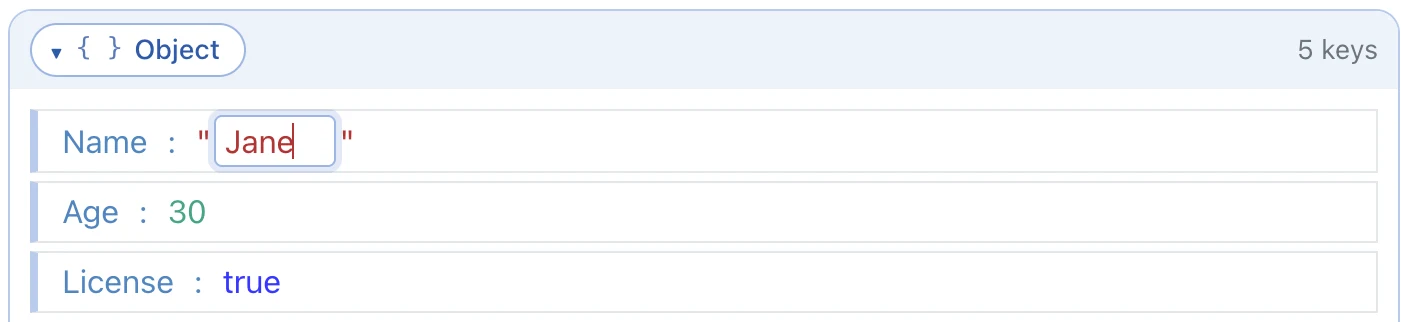
Click any value in the tree to change it.
- Press Enter or click away to save, or Esc to cancel.
- Click
trueorfalseto flip it. - Numbers are checked, so you can't accidentally save text into a number.
- Press View Code to get back to the editor with your changes, ready to copy.
Reading the colors
The editor and the tree use the same colors, so you can match them up at a glance.
NameKey: the label for a value
"John"Text (string), always in quotes
30Number
trueTrue / false (boolean) or null (empty)
Object: a group of named values. Blue box, rounded corners.
Array: a numbered list. Teal box, square corners.
Keyboard shortcuts
| To | Press |
|---|---|
| Save an edited value | Enter |
| Cancel an edit | Esc |
| Save a multi-line text value | Ctrl / ⌘ + Enter |
| Search inside the editor | Ctrl / ⌘ + F |
| Undo in the editor | Ctrl / ⌘ + Z |
Ready to try it?
Paste your own JSON, or start with the demo.
Open the JSON tool